Total Wipeout™, Terminate™, & Flicker™: How to Permanently Delete Messages and Conversations with xPal
xPal lets you permanently delete messages and conversations using three deletion features: Total Wipeout™, Terminate™, and Flicker™. Flicker™ (ephemeral mode) auto-erases messages after a set time; Terminate™ deletes an entire conversation on both devices; Total Wipeout™ (reverse-PIN) wipes out all chat history on all devices.
Deleted messages in a Secure Messenger are a tricky concept if we see. Either it is time-bound or leaves some traces behind. Thus, xPal has powerful deletion tools, and each has strengths, but when something extends beyond the app ecosystem, no magic exists that makes the app foolproof. E.g., someone has screen-recorded from another phone or instantly saved the conversation somewhere else.
xPal deleted messages do not linger in backups or system caches, so users have absolute deletion control over their data.
How to Permanently Delete Messages: How “Deleting” Messages Works (and Doesn’t)
First, an important reality check is that deleting a message in-app is not magic.
Permanent deletion is powerful, but it has a boundary that every messaging app has to respect: an app can control the data inside its own system, but it cannot control what another person does outside it.
xPal’s deletion features are designed to give the user control over messages and conversations within xPal. Total Wipeout™, Terminate™, and Flicker™ can remove content based on each feature’s specific function.
But deleting a message from xPal cannot erase a photograph someone has already taken of the screen with another phone.
It cannot remove a screen image that has already been saved somewhere outside xPal.
It cannot undo a screen recording that someone made before the message disappeared.
It cannot access another person’s camera roll, file system, cloud storage, or any other application to delete a copy created outside xPal Secure Messenger.
That is not a weakness unique to xPal. It is a fundamental boundary of digital communication.
The messaging application has no technical authority over other devices.
This is important because “permanently deleted messages” should never be confused with “a person can never have another copy.”
What xPal can do is control the copies and deletion mechanisms that are within the application’s system and provide the user with powerful tools to remove their conversations rather than assuming that every message should remain available indefinitely.
Privacy technology should be judged by what it actually controls, not by impossible promises.
A secure messenger can protect communications with encryption. It can minimize identifying information. It can provide disappearing messages. It can give users ways to remove conversations. It can reduce how much information remains available over time.
But it cannot control a human being who decides to do more.
That boundary exists even in the strongest privacy systems because the moment information becomes visible to a human, it can potentially be captured by something outside the system.
This is why responsible private communication requires both technical protection and human judgment.
xPal does not promise the impossible. It gives you as much control as technology can realistically provide.
Comparison: xPal vs. Signal, Telegram, iMessage, WhatsApp
| Feature | xPal | Signal | Telegram | iMessage (Apple) | |
|---|---|---|---|---|---|
| User Identity | No phone/email; 9-digit xID (anonymous) | Phone number required; no username | Phone number or username; supports anonymous usernames | Phone number | Apple ID (email/phone); sync via iCloud |
| End-to-End Encryption | Yes (AES-256, etc. NIST-validated) | Yes (Signal Protocol) | Cloud chats: client-server E2E; Secret chats: E2E | Yes (Signal Protocol) | Yes (iMessage) |
| Disappearing Message | Flicker™: custom timer (30s to 24h) | Disappearing messages (5 sec–4 weeks) | Secret Chat timer (choose seconds/days); Cloud-chats: media only | Disappearing: none in standard chats; only on images/videos in View Once mode | None (only Undo-send 2min window) |
| Delete Single Message (For All) | Yes: Unrestricted; delete any message from both sides anytime. (No time limit) | Yes (within 24h): “Delete for Everyone” must be used within 24 hours | Yes, always: Telegram lets you delete any sent or received message for both sides at any time. | Yes (60h limit): Delete-for-Everyone available for 2.5 days; shows “This message was deleted” placeholder. | Yes (2 min limit): iMessage lets you unsend within 2 minutes; older OS versions may still show original. |
| Clear/Erase Chat History | Yes (Terminate™): Wipe entire conversation on both ends. | No direct: You can delete local copy only. (Receiver still has theirs.) | Yes: You and the other person can each clear history; you control your own cloud history. | No (for all): You can delete your copy only | No: You can delete your copy; others keep theirs. |
| Full Account Reset | Yes (Total Wipeout™): Reverse-PIN erases all message data on all devices. | No: Deleting account removes local data; other users’ chats unaffected. | No: Deleting account can remove your data after inactivity, but no instant remote wipe of others. | No: Deleting an account only severs the account; it does not wipe recipients’ chats (except their view of you). | No: Deleting an account only deletes iCloud messages; it cannot recall already-delivered messages. |
| Screenshot Protection | Android: blocked; iOS: alert; Flicker: screenshots disabled. | None built-in (disappearing msgs warn, but screenshots not blocked). | Secret chats: notifiable on screenshot; cannot truly block. Cloud chats: no restrictions. | None: recipients can screenshot freely (and “View Once” photos only hide after view). | None: iOS cannot prevent screenshots; no alerts. |
| Metadata Sanitization | Strips EXIF from all media automatically. | Not by default (relies on user to remove metadata manually). | Not by default (some “blur faces” tools in third-party clients, but not a core feature). | Not by default; optional end-to-end backup must be enabled to protect chat backups. | Not by default; iCloud backups may include photo metadata unless disabled. |
A Detailed Explanation of How to Permanently Delete Messages with xPal
xPal provides three main delete messages privacy tools:
Flicker™ Mode (Disappearing Messages)
Flicker Mode makes individual messages ephemeral. You enable Flicker on a chat (before sending messages) and choose a lifespan. In xPal, messages are automatically deleted from both sender and receiver after a preset time once they have been read. Officially, the timer can be set from about 30 seconds up to 24 hours.
How does Flicker™ Mode work?
After you send a flicker message, the countdown doesn’t start until the recipient opens the message. Once the time expires (say, 30 seconds, 5 minutes, etc.), xPal’s app removes the message from local storage on both devices. The message bubble will vanish as if it was never there. This happens “structurally” (at the protocol level), so the message “cannot exist beyond its intended lifespan”.
How to enable Flicker™ Mode?
To use Flicker, open a one-to-one chat in xPal, tap the Flicker (clock) icon, and choose a timer (e.g., 30 seconds, 5 minutes, etc.). Then any messages you send in that chat will self-destruct. Important: Once you send, you cannot change the timer. Also, if the recipient never opens the message, it will stay in their inbox (the timer only starts on view). The same principle applies to disappearing messages in group chats.
Terminate™ Mode (Conversation Wipe)
Terminate™ lets users delete messages by deleting an entire chat conversation across both users’ devices. Terminate™ “permanently erases an entire chat history, not just from your device, but also from the recipient’s device”. After Terminate, “both your messages and their replies are completely wiped out”.
How to activate Terminate™ Mode?
In xPal secure messenger, go to the conversation you want to wipe, open Conversation Settings, and tap where the xID and username are written at the top, and then tap Terminate™. The app will confirm this one-way action (there is no undo). Once you activate it, xPal immediately deletes all messages, replies, and shared files in that chat on both ends.
What Protection does Terminate™ Mode provide?
xPal encrypts messages end-to-end; Terminate likely works by instructing the other device’s app to delete the history (no plaintext leaves xPal’s secure system). It prevents any backup or recovery. Unlike Signal’s “delete for everyone” (limited to 24h), xPal imposes no time limit on Terminate: you can wipe a chat long after it happened, as long as both devices still have xPal installed.
What are the Limitations of Terminate™ Mode?
If the other user is not online or has an outdated app, Terminate will apply when they next connect or update. However, nothing stops the other person from having copied content before. Also, Terminate only affects the chat itself. Unlike Total Wipeout, Terminate does not hide your identity or contacts; it just clears that chat thread.
Total Wipeout™ (Reverse-PIN Reset)
What is Total Wipeout™?
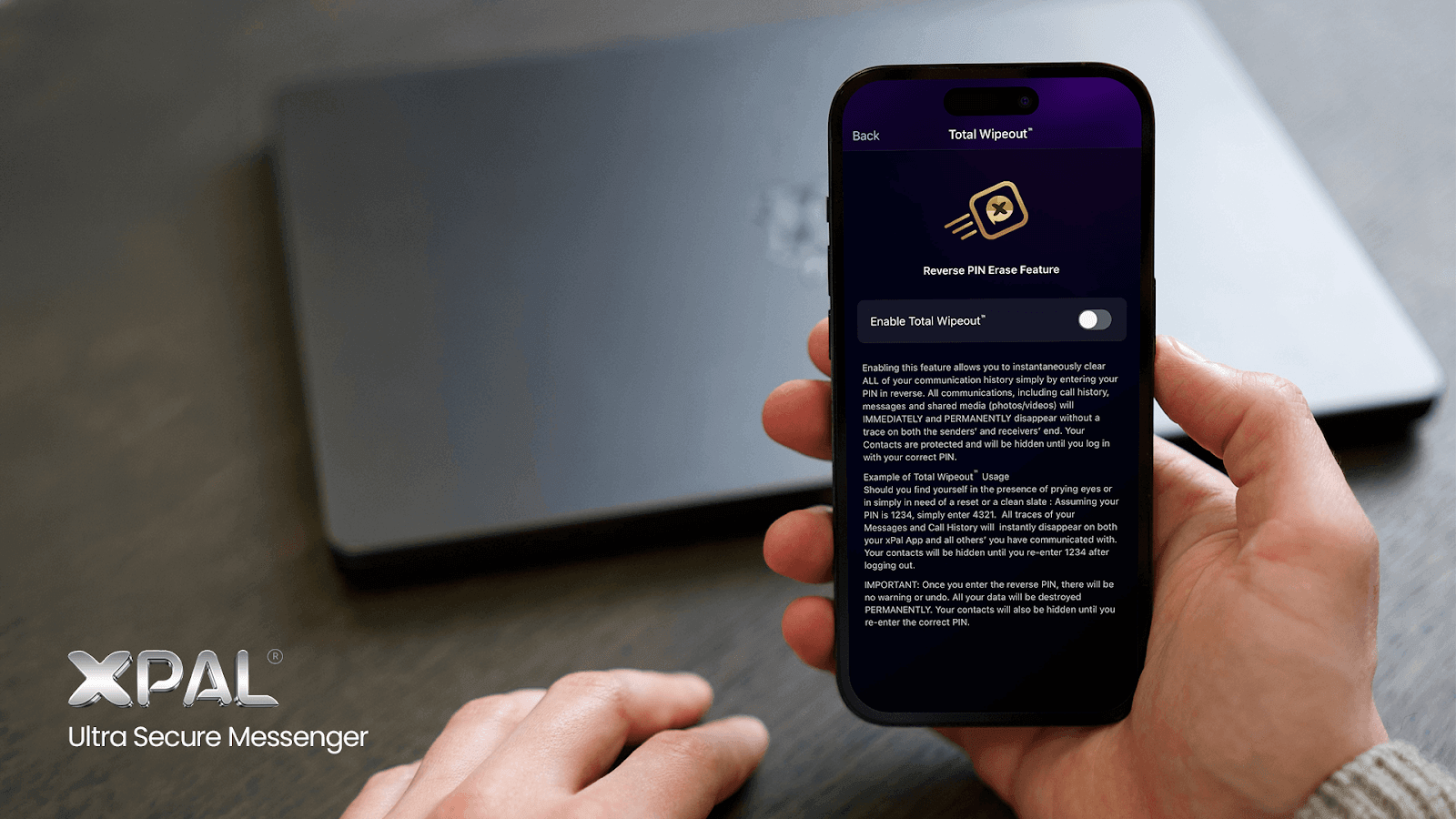
Total Wipeout™ is the most powerful privacy feature to delete messages and chat histories.
Entering your PIN backwards on login (e.g., if PIN is 1234, entering 4321) instantly triggers a global reset. This “reverse PIN” wipe will delete message data of xPal on every device where your account was logged in. It not only clears your own chats, but also every conversation you have ever had on the recipient’s phones. Total Wipeout™ is erasing “your entire history… without leaving a trace on either the sender’s or receiver’s device”. All contacts and xIDs are masked until you log in again normally.
How to enable Total Wipeout™?
Total Wipeout™ is available as part of xPal’s Gold Plan. Go to the settings and tap on Total Wipeout™ and enable it there.
At the xPal login screen, tap the PIN pad. Input your 4-digit PIN in reverse. There is no warning or confirmation; once the final digit of the reversed PIN is entered, Total Wipeout immediately and irreversibly destroys all data. The app’s interface will then appear “empty,” and all previous messages are gone. You must be online for Wipeout to propagate.
What protections does Total Wipeout™ provide?
This is meant for emergencies (e.g., device seized or compromised). Wipeout is as complete as possible within xPal’s ecosystem: it hides your xID, blocks your contacts, and removes media and messages everywhere. Since xPal does not store user messages on its servers, Wipeout is purely user-side.
You do not need to manage xPal cloud backups
Unlike messaging services that keep copies of conversations in cloud storage, xPal does not store user data or message content on its servers, and xPal does not provide cloud backups of your conversations.
That means there is no xPal server-side conversation archive for users to manage or disable.
Your conversations remain within the xPal environment on device rather than being maintained as a cloud message history on xPal’s infrastructure.
Push notifications do not expose message content
xPal also avoids placing message content directly into push notifications.
This matters because notification previews can expose sensitive information without someone opening the messaging application. With xPal, push notifications do not display the actual message content.
So even if a notification appears on the lock screen, the message itself is not revealed through the notification.
Privacy is strongest when the system minimizes what exists, gives the user control over what remains, and does not depend on a permanent server-side copy of the conversation.
FAQs
Does xPal keep a copy of my conversations on its servers?
No. xPal does not store user data or message content on its servers. Your conversations are not maintained as a permanent server-side chat history.
Does xPal make cloud backups of my messages?
No. xPal does not provide cloud backups for conversations. There is no xPal cloud archive that keeps a copy of your chat history for later restoration. This is an important part of the privacy model, although it also means users should not expect the same kind of cloud-based message recovery offered by services built around persistent backups.
Why doesn’t xPal show message content in notifications?
Because notifications can expose private information without the user ever opening the app. A message appearing on a locked screen can be seen by someone nearby, captured in a screenshot, or exposed while the phone is sitting on a desk. xPal notifications do not display the actual message content, keeping the conversation inside the app instead of putting it into the notification layer.
What happens if I send a Flicker™ message and the recipient never opens it?
The countdown does not begin simply because the message was sent. Flicker™ starts its timer after the recipient views the message. This is an important detail for anyone using disappearing messages for sensitive information because an unread message should not be assumed to have already disappeared or begun its countdown.
Why would someone use Terminate™ instead of deleting individual messages?
Because sometimes the problem is the conversation itself, not one particular message. Terminate™ is intended to clear the entire conversation from both sides rather than making the user go back through the chat and remove messages individually. It is particularly useful when a conversation that was previously mild later becomes something the participants no longer want retained.
Can Terminate™ remove something the other person has already saved?
No. Terminate™ controls the conversation within xPal. It cannot reach into a camera roll, another application, a screenshot, or a recording someone made before the conversation was terminated.
What happens if I lose the phone where I use xPal?
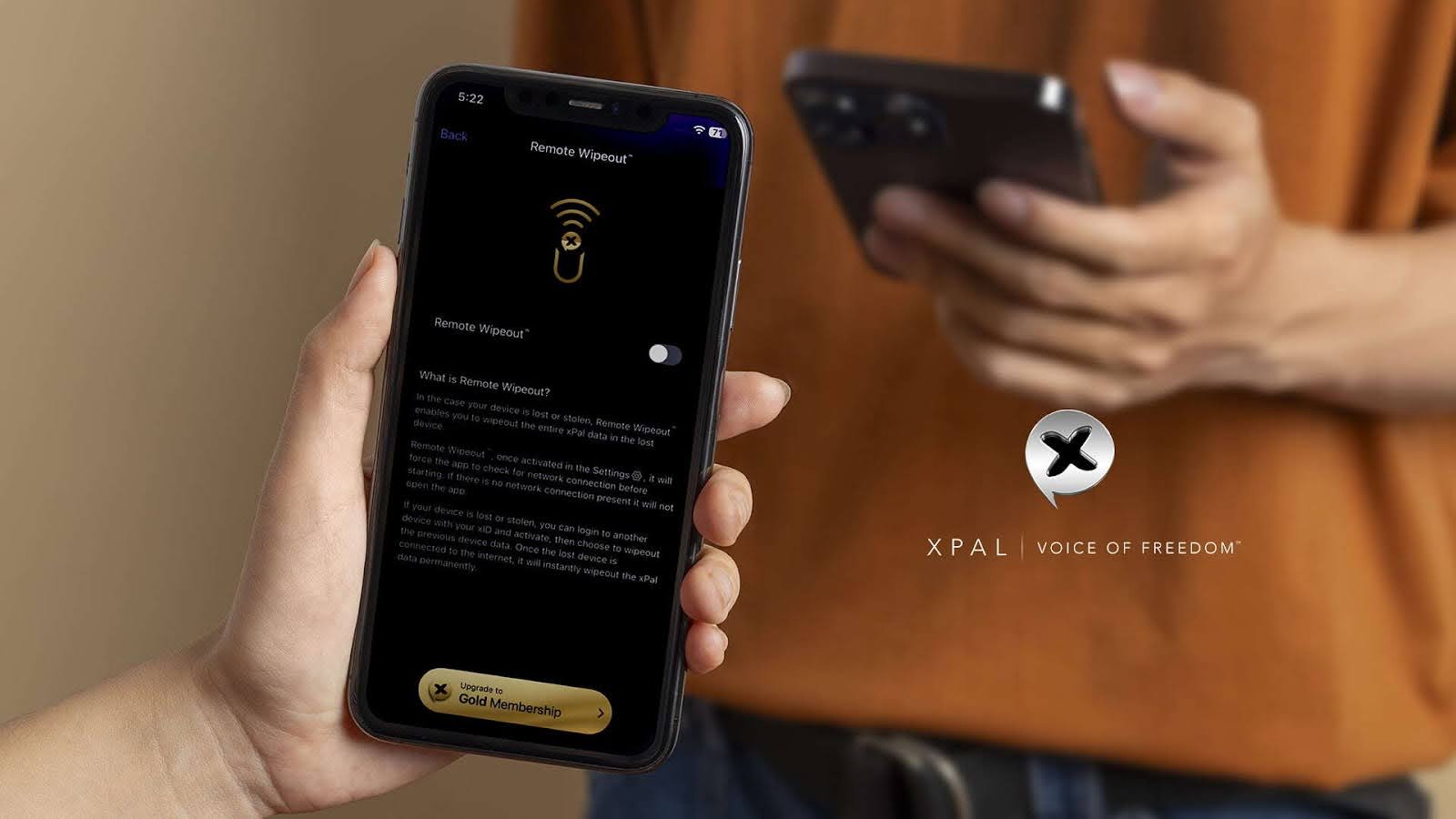
Remote Wipeout™ is intended for exactly this kind of situation. If you lose physical control of a device, the concern is no longer simply whether someone knows your PIN. The device itself has become part of the threat. Remote Wipeout™ gives the account owner a way to remove xPal data from that device rather than waiting for the device to be recovered.
Why does xPal have both Terminate™ and Total Wipeout™?
They operate at different levels. Terminate™ is focused on an individual conversation, while Total Wipeout™ is intended as a much broader emergency action for removing xPal message history. In other words, one is useful when a particular conversation needs to disappear; the other is for situations where holding the account’s xPal data itself has become a serious concern.
Can someone still photograph a Flicker™ message?
Yes. This is one of the limits worth being completely honest about. Screenshot controls can make ordinary digital copying harder, but no messaging application can stop somebody from using a second phone or camera to photograph the screen. Flicker™ reduces the time the message remains available inside xPal; it cannot control the physical world around the recipient.
If xPal does not store my chats on its servers, where does the conversation exist?
xPal Secure Messenger does not maintain a server-side archive of your conversations. The messaging system therefore does not depend on keeping a permanent cloud copy of your chats. The application and the devices involved handle the data lifecycle, rather than an xPal-hosted message history that remains available indefinitely.